A Pop-Up Blocker Detector Page
What is a Pop-up Window?
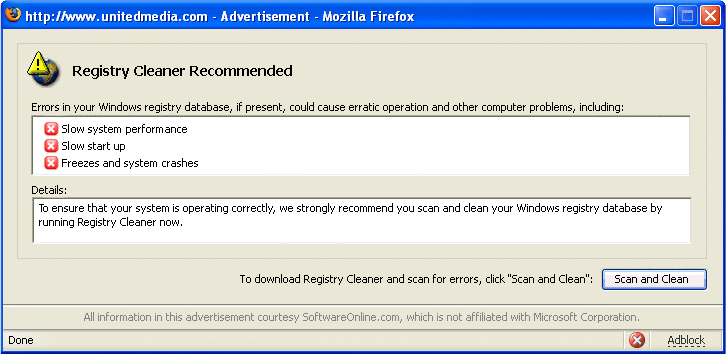
Pop-up Windows are small browser windows -- without the address bar, drop down menus, and other identifying features -- which "pop-up" while Internet users are browsing web pages or running web applications. The Pop-up Windows contain small web pages which are usually dynamic and often interactive. Most often they are associated with intrussive advertisements which literally get between the user and the web pages they are trying to view.
They are generated by JavaScripts -- small programs downloaded as part of web pages.

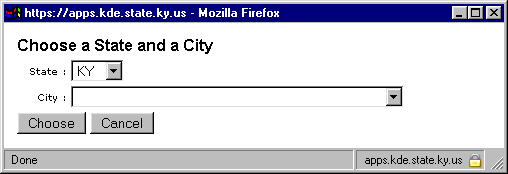
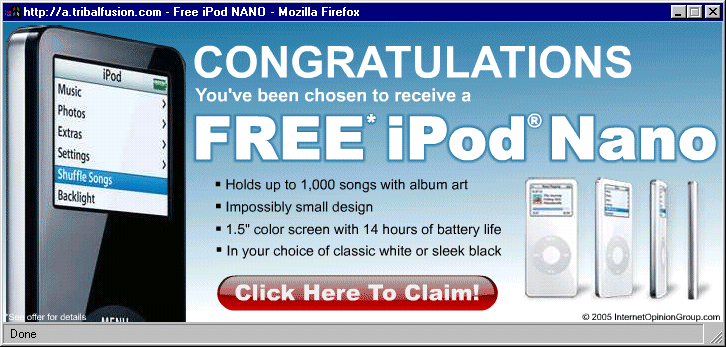
(This last example is particularly misleading. Some user can easily assume that the pop-up box is a message from their operating system or a utility already installed legitimately on their computer. But a careful examination reveals it is neither.)
What is a Dialog Box?
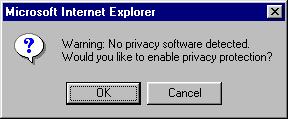
Dialog boxes are not the same as pop-up boxes although they operate similarly. A dialog box is a simple gray rectangle containing a text message and a button for the user to click.
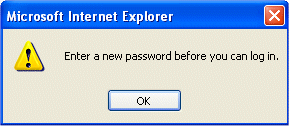


In most case, dialog boxes server legitimate utilitarian needs. Because of their plain, unadorned appearance, dialog boxes don't lend themselves as well to advertising. But some clever advertisers have dialog boxes with scary warning messages to trick you into clicking them so you get directed to another site or run a program. Here's one example:
How Can Pop-Up Blockers Be a Problem?
Pop-up Blockers are programs which prevent annoying and offensive pop-up advertisements from appearing when computer users browse the World Wide Web. Unfortunately pop-up blockers also prevent legitimate, constructive uses such as changing passwords or selecting a city and state from list of options. To complicate the matter, many users have forgotten or are unaware that they have a pop-up blocker enabled and are confused because the web applications that they are trying to use don't work properly. In most cases, there are no error messages to explain the situation to users.
The purpose of this web page is to address this situation. This page uses a JavaScript (written by Edmond Woychowsky) to determine whether or not you have a pop-up blocker enabled on your system.
JavaScript Source: Edmond Woychowsky "Detecting if a user has a pop-up blocker enabled" at http://builder.com.com/5100-6371_14-5213774.html. Published: 5/24/04.
If the script works properly, a dialog box has appeared with one of two messages.
(If neither message appears then it is very likely that a pop-up blocker is enabled on your system -- or you don't have JavaScript enabled on your browser.)
CAVEAT: This script does not detect the pop-up blocker incorporated by the Yahoo! Toolbar. If you are using it, please see the Yahoo! Toolbar section below.
What are some Pop-up Blockers and How Can I Disable Them?
Many of us think of pop-up windows solely as unwelcome advertisements. We would like to eliminate all pop up windows. But there are legitimate, constructive uses for pop-ups as well. If you have a pop-up blocker installed on your computer, it might be necessary to disable -- either temporarily or completely -- or enabled it to make exceptions for certain sites where the pop-ups are functional.
There are many, many pop-up blocker programs -- such as the Google Toolbar -- and they are disabled and programmed differently. With some you can hold down the shift key while clicking on a button but that will only disable them temporarily.
Here are some of the most common pop-up blockers:
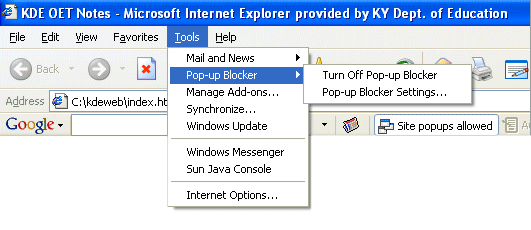
- Windows XP Service Pack 2 Pop-up Blocker: In Windows XP Service Pack 2, a pop-up blocker is bundled with the operating system. Recently Microsoft has directly integrated Service Pack 2's Pop-Up Blocking into Internet Explorer so that users can more easily change the settings.
- Open Internet Explorer
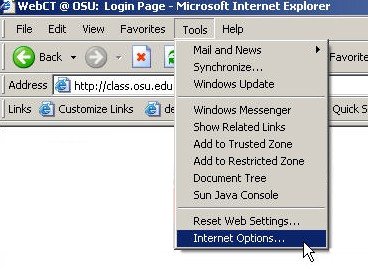
- Click on the Tools Menu
- Select "Pop-up Blocker" from the drop down menu
- Select "Pop-up Blocker Settings"
- Type in an address -- such as "teds.ky.gov" -- in the first field: "Address of web sites to allow."
- Click the "Add" button to move your entry to the list of allowed sites
- Click the "Close" button
- Open Internet Explorer
- Click on the Tools Menu
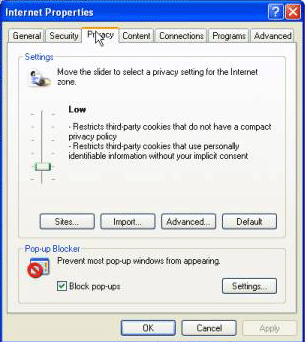
- Select Internet Options
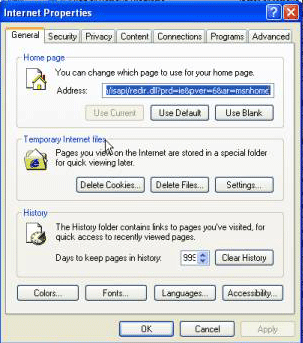
- The "Internet Properties" window will opens
- Click on the Privacy tab
- Click on the "Settings" button in the "Pop-up Blocker" section
- Type in an address -- such as "teds.ky.gov" -- in the first field: "Address of web sites to allow."
- Click the "Add" button to move your entry to the list of allowed sites
- Click the "Close" button
- Click "OK" button
- Open Internet Explorer
- Click on the Tools Menu
- Select "Pop-up Blocker" from the drop down menu
- Select "Turn Off Pop-Up Blocker"
- Open Internet Explorer
- Click on the Tools Menu
- Select Internet Options
- The "Internet Properties" window will opens
- Click on the Privacy tab
- Make sure the "prevent most pop-up windows from appearing" check box is unchecked
- Click "OK" button
Add the URL of the web site to the list of exceptions for the Windows XP Service Pack 2 Pop-up Blocker in recent versions of IE:
Add the URL of the web site to the list of exceptions for the Windows XP Service Pack 2 Pop-up Blocker in slightly older versions of IE:
Disabling Windows XP Service Pack 2 Pop-up Blocker in recent versions of IE:
Disabling Windows XP Service Pack 2 Pop-up Blocker in slightly older versions of IE:
For more information on the Windows XP Service Pack 2 Pop-up Blocker, please visit http://support.microsoft.com/search/ and search for "Windows XP Service Pack 2 Pop-up Blocker."
- The Google Tool Bar
The Google Tool Bar looks like this image:
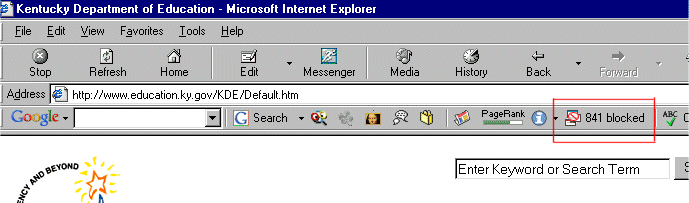
- Press and hold the Ctrl key while clicking the link that generates the pop-up window
- Press the Popup Blocker button when you visit the site
- The button text will read "Popups okay" while you are at that site
- Click on the "Options" button on your Google Toolbar
- Un-check the "Popup Blocker" box
To disable the Google Tool Bar Pop-up Blocker temporarily:
To disable the Google Tool Bar Pop-up Blocker for certain sites:
To disable the Google Tool Bar Pop-up Blocker completely:
For more information on the Google Tool Bar, please visit http://toolbar.google.com/
- The Yahoo! Toolbar
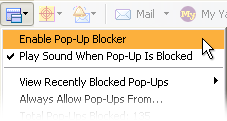
The Yahoo! Toolbar looks like this image:

- Press and hold the Ctrl key while clicking the link that generates the pop-up window
- Click the Pop-Up Blocker menu
- Select "Always Allow Pop-Ups From..."
- Select the site from the "Sources of Recently Blocked Pop-Ups" list
- Click "Allow"
- Click the Pop-Up Blocker menu
- Uncheck "Enable Pop-Up Blocker"
To disable the The Yahoo! Toolbar Pop-up Blocker temporarily:
To disable the The Yahoo! Toolbar for certain sites:
To disable the The Yahoo! Toolbar completely:
For more information on the The Yahoo! Toolbar, please visit "What if something I want to see is getting blocked?" at http://help.yahoo.com/help/us/toolbar/pub/pub-07.html
- Mozilla Browser
- Go to the Edit drop down menu
- Select "Preferences"
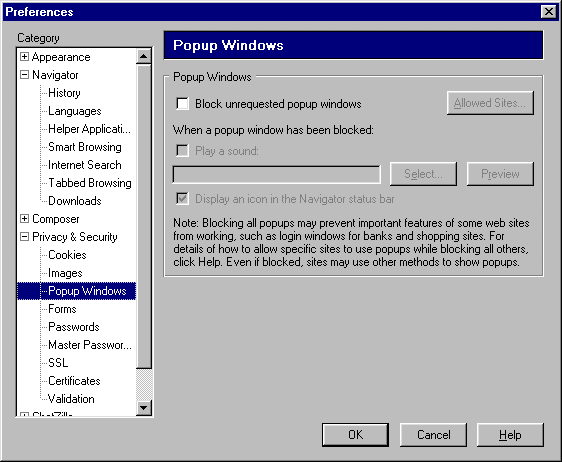
- Select "Popup Windows" under "Privacy & Security"
- Cick the "Allowed Sites" button
- Add the site -- such as teds.ky.gov -- to the list of allowed sites
- Go to Edit
- Preferences
- Privacy & Security
- Popup Windows
- Checking "Block unrequested popup windows" will block most unrequested popups while leaving it unchecked will allow them
The Mozilla browser has the option to ignore many pop-ups. It is a feature and not a separate program.
To disable the pop-up blocker settings in Mozilla for certain sites:
To disable the pop-up blocker settings in Mozilla completely:
- Firefox Browser
- Select the "Tools" drop down menu.
- Select "Options"
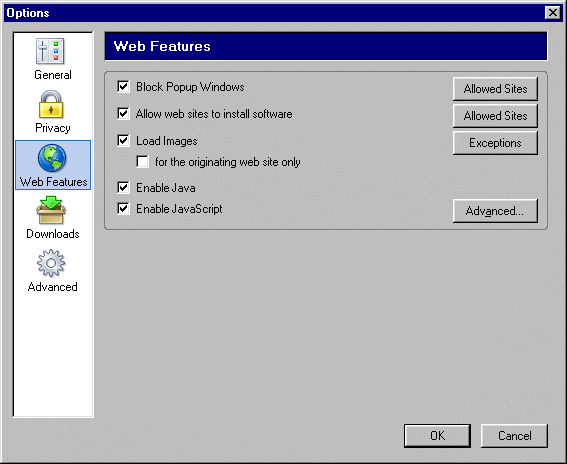
- Select "Web Features"
- Cick the "Allowed Sites" button level with the "Block Popup Windows" checkbox
- Type in an address -- such as "teds.ky.gov" -- in the first field: "Address of web sites to allow."
- Click the "Add" button to move your entry to the list of allowed sites
- Click the "OK" button
- Click the "OK" button
- Select the "Tools" drop down menu.
- Select "Options"
- Select "Web Features"
- Uncheck "Block Popup Windows" to allow pop-up
Like the Mozilla Browser, the Firefox browser can be set to ignore pop-ups. Here's how to change that setting:
To disable the pop-up blocker settings in the Firefox browser for certain sites:
To disable the pop-up blocker settings in the Firefox browser completely:
- Earthlink Toolbar
- Click the Pop-Up Blocker icon (the red fist) on the toolbar
- Select "off"
To disable the Earthlink Toolbar Pop-Up Blocker completely:


- AOL Toolbar
- Click the Blocking Pop-ups or Allowing Pop-ups icon on the AOL Toolbar
- Click Set Pop-up Controls Preferences
- Click on the "Allow Web pop-ups from these sites:" option under the "Web Pop-ups" heading
- Type the Website address from which you want to allow pop-ups in the "Allow Web pop-ups from these sites:" box
- Click the Add button
- Click the Save button
- Click the "Blocking Pop-ups" icon on the AOL Toolbar
- Click "Allow Pop-up from <web-site name>"
- Then the Pop-Up Blocker icon will show a green light symbol over a yellow window icon. That indicates that pop-ups are enabled on this specific web site.
- Click the Blocking Pop-ups icon on the Toolbar
- Click Turn Pop-up Controls Off
- Then the Pop-Up Blocker icon will show a green light symbol over a white window icon. That indicates that pop-ups are enabled on all web sites.
Note: The AOL Toolbar is not the same as "AOL Pop-up Controls."
When the Pop-Up Blocker icon displays a red circle with slash symbol over a white window icon, that indicates that all web site pop-ups are blocked.
To disable the AOL Toolbar Pop-Up Blocker for certain sites:
Alternatively, to disable the AOL Toolbar Pop-Up Blocker for certain sites:
To disable the AOL Toolbar Pop-Up Blocker completely:
Source: http://help.aol.com/AIMhelp/ ...
- Norton Internet Security
- On the left side of the main window, click "Norton AntiSpam."
- Click "Pop-up Blocking"
- Click "on" and it will will change to "off"
To disable Pop-up Blocking in Norton Internet Security completely: